
Stand up and hold the room.
Describe your talk and Captivate’s AI builds it — the argument first, then every scene. You present on one canvas, with a camera flying from idea to idea, so the room always sees where each point fits.
Free plan, no card required.
The engine itself, not a recording, running the worked example every new account opens with.
The argument comes first
Describe the talk
A sentence or two about what you're arguing and who's in the room — or start from a structure. Attach your own notes, or a .pptx, .docx or Markdown file, for the AI to draw on.
“A twenty-minute talk for new lecturers: why a room’s attention drifts, and how to shape a talk that keeps it.”
A brief is a sentence or two. This one is an example.
Shape the argument
Captivate proposes a narrative map: movements and moments, each stating its purpose. Reorder and rewrite it; nothing is drawn until you'd stand behind it.
The problem
The room leaves early
Start inside a failure the audience has lived from both sides.
When attention goes
Show the shape of drifting attention rather than assert it.
The idea
An argument is a place
State the central idea everything else hangs off.
What a camera changes
Make the reframe concrete in three claims.
Why it holds
Three things the room keeps
Name what survives the talk when the deck had a shape.
Spending attention on purpose
Set the things that keep a room against the things that cost one.
Doing it
Build in movements
Give the working method, in the order it is used.
One idea per scene
Compress the craft into a rule that survives the talk.
The narrative map of “Hold the room”, the worked example running above: every moment stating the job it does in the talk.
Present on one canvas
The scenes are written and placed on one canvas. Presenting flies a camera between them, with your notes on a private console only you can see.
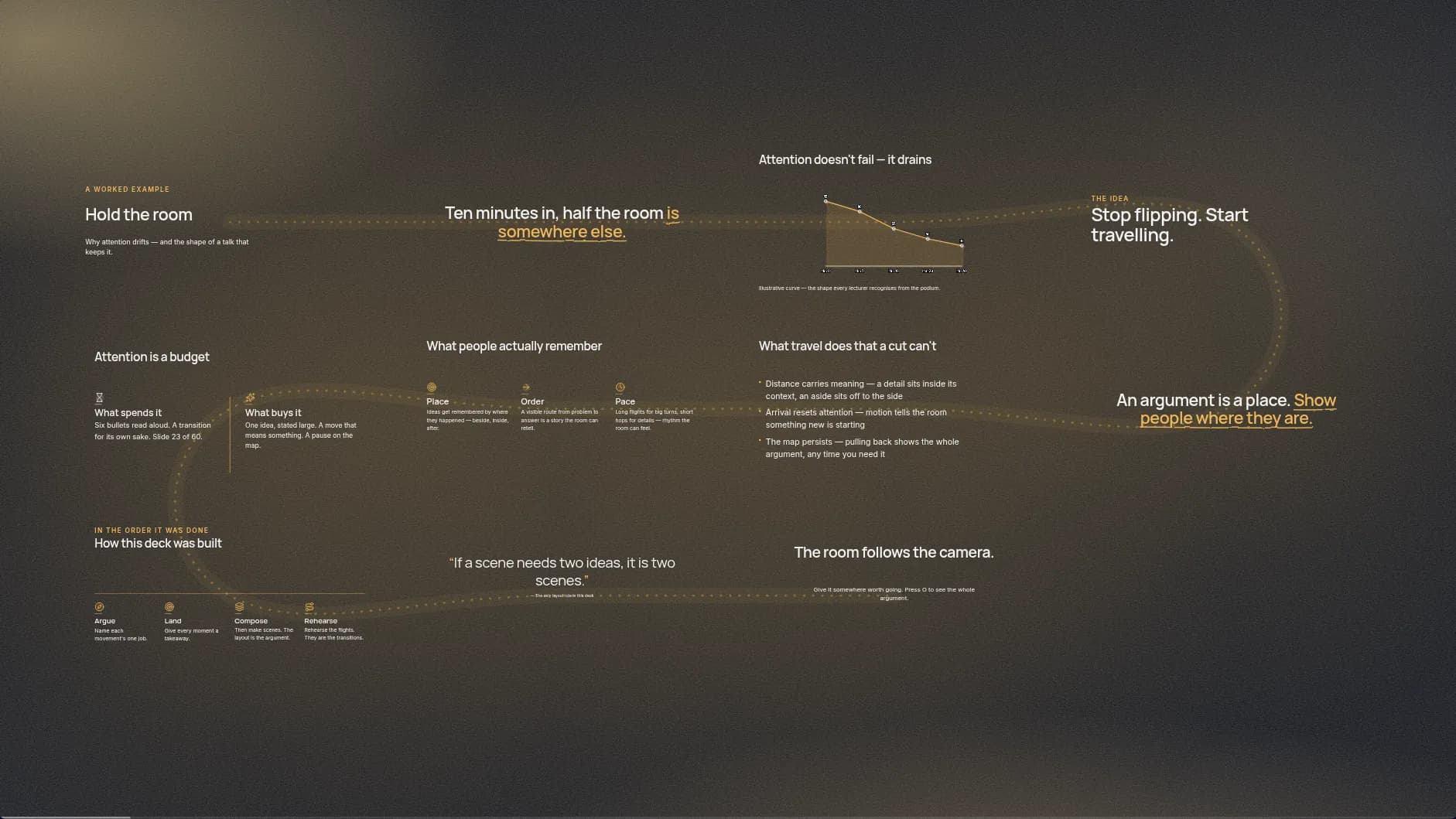
The same talk as the engine lays it out: every scene placed, the route between them drawn.
The whole of it, in seventy-eight seconds
How a talk is made, what the room sees, and what it costs — with the engine recorded as it runs, not drawn.
Read what the film shows
- Ten minutes in, half the room is somewhere else.
- Stop flipping. Start travelling.
- Captivate, by Axtevi. AI presentations that hold the room.
- From a brief to the room in three steps: describe the talk, shape the argument, present on one canvas.
- The real engine: a camera, not a clicker.
- One canvas: every scene performs when it lands.
- Built in beats: the point arrives when you do.
- The whole argument: the room always sees where each point fits.
- Present like you're in the room. Your phone is the remote. The room answers. Record it, captioned. A narrative map. You, on the stage. Share it, or hand it over.
- Live polls: the room answers — on their own phones, with no account and no app.
- Live Director, on Basic and Pro. It listens. It proposes. You approve. Nothing reaches the screen until you say so.
- Made for the room you're walking into: 30 structures for teachers, trainers, founders, researchers, teams and speakers.
- Start free: 10 AI-generated presentations in any 30 days. No card required. Paid plans from $12/month.
- Stand up and hold the room. Start free at captivate.axtevi.com.
What you have when you stand up
Presenting, recording and sharing are on every plan, the free one included.
A camera, not a clicker
Scenes sit side by side, spiral outward or nest inside one another. Travel is fly, dissolve or cut, through backdrops drawn in depth: stars, nebula, horizon or orbs.
Your phone is the remote
Walk the room and move the camera from your phone. It never carries your notes.
The room answers
Put a question on a scene. People answer on their own phones — no account, no app — and the count grows on the canvas.
Record it, captioned
Screen, voice and camera in one file with scene markers. Captions from a live transcript, kept as .vtt or burned in.
Present like you're in the room
Laser pointer, live highlight, freehand ink. A private console with your notes and timers, on your screen only.
You, on the stage
Put your camera feed anywhere over the canvas, background removed on your device.
Share it, or hand it over
Send a link anyone opens in a browser, or export a .pptx that PowerPoint and Keynote open, notes intact.
Your material, not the model's
Ground a talk in your own notes and files. Where the map cites them, the quoted passage must appear in what you gave it, or the citation is dropped.
Live Director, on Basic and Pro
A director that listens, and you still call every shot
Live Director listens as you present and proposes what the screen should do next. It is off until you start it, and presenting without it is unchanged on every plan. Included in Captivate Basic ($12/month) and Captivate Pro ($25/month).
How Live Director worksYou talk
Present as you always would. It listens to what you're saying.
It proposes
Lift the point you're making, reveal your next prepared point, go to a scene you name, put a question to the room — privately, on your console.
You approve
Nothing reaches the screen until you say so. The room only sees what you chose.
Made for the room you're walking into
Teaching
For teachers, lecturers, trainers and coaches
- Lecture
- Case study
- Workshop
- Teach a procedure
- Webinar
- First day of a course
- Exam review
- Book talk
Business
For founders, sales, marketing and leadership
- Pitch
- Report
- Decision briefing
- Product launch
- Quarterly review
- Client proposal
- Marketing plan
- Investor update
Talks & events
For keynotes, conferences, and the occasions that need a speaker
- Keynote
- Portfolio
- Fundraising appeal
- Tribute or toast
- School assembly
- Sermon or homily
Teams & projects
For team leads, managers and project owners
- All-hands
- Project kickoff
- Status update
- Team retrospective
- Onboarding
- Safety briefing
Research & technical
For researchers, engineers, analysts and students
- Journal club
- Technical talk
- Research talk
- Thesis defence
- Lightning research talk
Healthcare & clinical
For health educators and care teams
- EMS case scenario
- Pathophysiology
- Drug card
- Anatomy tour
- Simulation debrief
- Morbidity and mortality review
- Grand rounds
- Protocol update
- Quality improvement project
Free to start. Pay when you present more.
Free
$0
10 presentations generated in any 30 days. Every editing, presenting and recording feature.
Captivate Basic
$12 / month
25 presentations generated in any 30 days. Everything in Free, with AI image generation and Live Director.
Captivate Pro
$25 / month
60 presentations generated in any 30 days. Everything in Free, with AI image generation and Live Director.
Before you sign up
Every plan and its limits are on the pricing page.
Is there really a free plan?
Yes. Free costs nothing and asks for no card. It includes the editor, the canvas, presenting, recording, sharing and export, with 10 presentations generated in any 30 days. Paid plans add a larger AI allowance, AI image generation and Live Director.
What does the AI actually do?
You describe the talk in a sentence or two, and can attach your own notes or a .pptx, .docx or Markdown file for it to draw on. It first proposes a narrative map: movements and moments, each stating its purpose and what the audience leaves with. You reorder and rewrite the map, then it writes the scenes and places them on the canvas. Everything it writes stays editable, and you can regenerate one moment without touching the rest.
Can the audience see my speaker notes?
No. The window the room sees never loads your speaker notes; they stay on your private presenter console. The phone remote and share links do not carry them either.
How much does it cost?
Free is $0 for 10 AI-generated presentations in any 30 days. Captivate Basic is $12 a month for 25, and Captivate Pro is $25 a month for 60. Billing is monthly. Cancelling keeps every presentation, asset and recording you have made.
Can I bring in my existing PowerPoint?
Not as it looks. A .pptx is read in your browser in its running order — titles, bullets and speaker notes — and a new presentation is written from it; a .docx seeds one the same way. Layouts, pictures and branding do not come across. Going the other way works: export a .pptx that PowerPoint and Keynote open, with your notes intact.
Do people need an account to take part?
No. A share link opens in any browser, and when you put a question to the room, people answer on their own phones without an account or an app.